Free WordPress Security Checklist: Ten Things to Fix Before You Get Hacked

If you run a small business website on WordPress, you may also be the person responsible for keeping it updated and secure. Maybe you manage the site yourself, or you have a web designer or helper you can call. Either way, it helps to have a short list of practical checks you can return to.
A ten-item checklist is easier to use when you are busy than a long technical guide. It will not prevent every possible problem, but it can help you close common gaps and know what to do if something looks wrong.
The ten checks
1. Update WordPress, plugins and themes
Check your WordPress dashboard for updates to WordPress itself, your plugins and your theme. Updates can include security fixes, so do not leave them sitting indefinitely; if you are unsure whether an update might affect your site, take a backup first or ask your website helper.
2. Delete plugins and themes you do not use
An inactive plugin or theme you no longer need is still part of your website’s files. Remove the ones you have stopped using, and keep only software you recognize and trust. WordPress’s security guidance recommends keeping plugins updated and deleting ones you do not use.
3. Turn on two-factor authentication for every admin login
Two-factor authentication asks for a second check, often a code from an app, in addition to your password. Turn it on for every account with administrator access, and ask your site helper to do the same for their account. WordPress has guidance on two-step authentication.
4. Use unique passwords in a password manager
Use a different password for WordPress, your hosting account, domain registrar and other important services. A password manager can create and store these for you, so you do not have to remember each one or reuse the same password across accounts.
5. Count who has administrator access
In WordPress, review the list of users and note every account with the administrator role. Make sure you recognize each person and that they still need that level of access. If you are unsure why an account is there, check with your website helper before changing it.
6. Keep backups away from your hosting account
A backup stored only with your website host may not be available if your hosting account is affected. Arrange to keep a separate copy somewhere you can access independently, and check that the backup includes both your site files and database. WordPress explains the parts of a backup in its backup guide.

7. Connect Google Search Console
Google Search Console can show security issues Google has found on your site, including hacked content or malware. Add and verify your website, then make sure you can access the account and receive its notifications. Start with Google’s Search Console guide.
8. Know your hosting, DNS and domain logins
Keep a secure record of which companies manage your web hosting, DNS and domain name, and where to sign in to each account. These services are related but can be managed separately. Knowing who controls them can save time if you need to change a setting or get help.
9. Remove old access
If a staff member, contractor or agency no longer works on your site, remove their WordPress account and any access they no longer need to other website services. If you do not know whether a login is still required, confirm before removing it so you do not lock out someone who is maintaining the site.
10. Choose who to call before you need to
Write down who you will contact if your website behaves unexpectedly: your hosting provider, website developer or a security specialist. Save their contact details somewhere you can reach even if your website is unavailable. If you do not have a contact yet, decide how you will find qualified help.
Signs you may already have a problem
A checklist is for prevention, but it is also useful to know what deserves attention. Check in promptly if you notice:
- An administrator account you did not create or do not recognize.
- Visitors being sent to a website you did not choose.
- A warning about your website in Google search results or a browser.
- Spam pages appearing under your domain.
- Customers receiving strange email that appears to come from your domain.
- Your web host contacting you about suspicious activity before you noticed anything.
One sign does not always tell you exactly what happened, but it is worth checking. Google explains how its Security issues report can show findings such as hacked content and warnings that may appear in search or browsers. If you suspect a compromise, avoid making random changes before you understand the issue. Our guides explain what to do first if your WordPress site is hacked and how to check for signs of a hacked site.
Get the checklist and use it
The infographic below puts the ten checks in a quick, shareable format. Print it, keep it near your workspace, or share it with someone who helps manage your website.
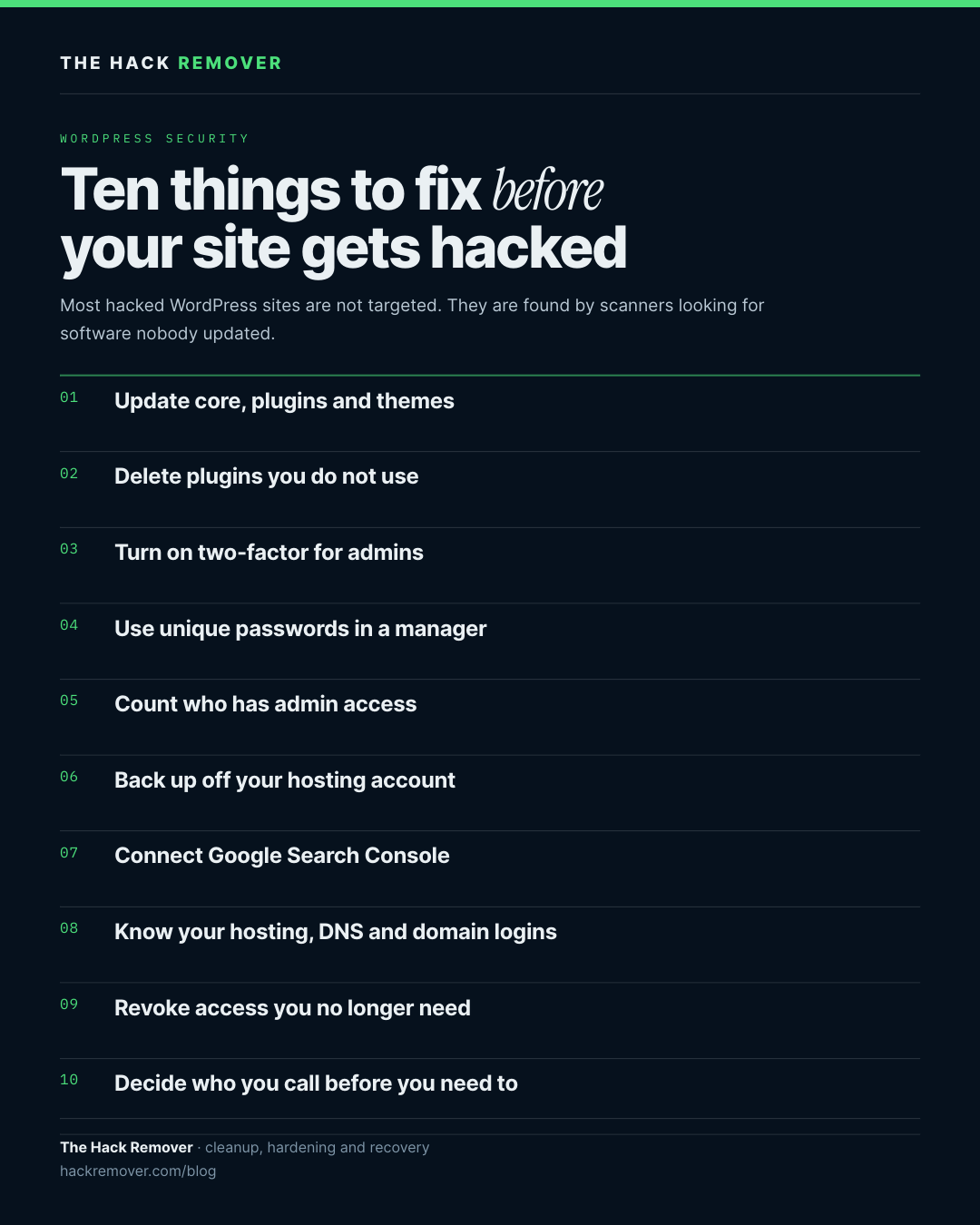
Printable PDF: Download the checklist and print it for the desk or the wall.
Shareable image: Download the 1080 x 1350 version for a post, a newsletter or a slide.
Both are free to print and use.
To put the checklist to work, print it and go through the items in one sitting. If you need help with an account or setting, note it and ask your website helper or hosting provider. Then repeat the check once a month so the list stays familiar and out-of-date access does not go unnoticed.